1B. Running a "Hello World" App in BUI and DWC
Overview
This section covers registering a simple "Hello World" BBj program to run in BUI and the new Dynamic Web Client using the information from the previous section.We'll be using this zipped folder's contents for this section.
Concepts Covered in This Section
- Registering and launching BBj GUI apps in the BUI and DWC clients
- Using the INFO(3,6) to identify the client
- Using BBjSysGui constants with the BBj message box
- Specifying custom DWC modes with the BBj message box
The previous section covered a couple of different ways to register a BBj app to run in the browser in the BUI and DWC clients. This section applies that knowledge by providing a sample program to register and run in the Dynamic Web Client. Additional exercises modify the message box using custom modes.
Sample Code
The following program will be the source for your first DWC app. You may either copy/paste the code into Eclipse, or simply load the MessageBox.bbj program file from the 01_GUI2BUI2DWC folder in the DWC Training zip file.if (info(3,6)="1") then client$ = "GUI"
if (info(3,6)="5") then client$ = "BUI"
if (info(3,6)="6") then client$ = "DWC"
temp = msgbox("Hello from BBj's " + client$ + " client!", BBjSysGui.MSGBOX_ICON_INFORMATION, "Greetings", MODE="theme=primary")
release
Program Notes
The code determines the runtime client by comparing the value for the INFO(3,6) to known values listed in the INFO() Function documentation. It then displays a BBj message box and includes the client information in the message body.The message box specifies the information icon using a BBjSysGui constant, which corresponds to 64 in the MSGBOX() Function documentation. This is not necessary, but it does improve the code's legibility because the developer does not need to memorize all the numerical values for the icon types.
Finally, the code adds a MODE to the MSGBOX() function that indicates that the message box should be displayed in the DWC's primary color theme. This parameter is ignored in the GUI and BUI clients so it has no effect when run in those clients. The DWC supports seven possible component themes: primary, default, danger, info, success, warning, and gray, any of which can be used with the message box. Many BBj controls also support setting the theme for the control via the setAttribute() method with the "theme" attribute and the desired value. The DWC documentation for the BBjButton shows that it supports several values for the "theme" attribute, as shown in its Properties table. In addition to the seven themes, it also supports outlined versions of those themes.
The message box documentation describes the MODE="property=value" as:
In BBj 21.10 and higher, the mode string can specify arbitrary DWC properties (e.g., "theme=danger"). Themes can also be applied to individual buttons (e.g., "button-0-theme=success, button-1-theme=info, button-2-theme=danger").
Example 1 - Running a BBj Program in GUI, BUI, and DWC
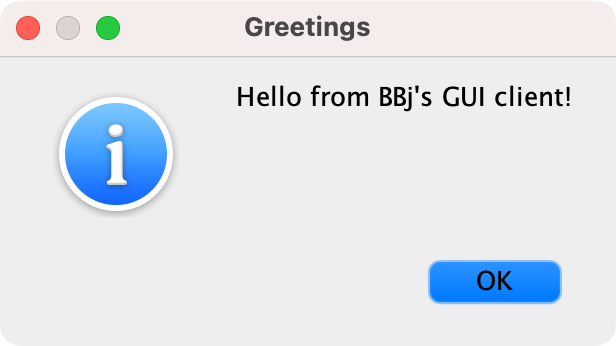
1) Load the above program (MessageBox.bbj in the zip file) into the Eclipse editor and then run it in the GUI client via Eclipse's [Run] tool button ( ). It should look similar to the following (note that the screenshot is from macOS, the message box will look different on Windows):
 ). It should look similar to the following: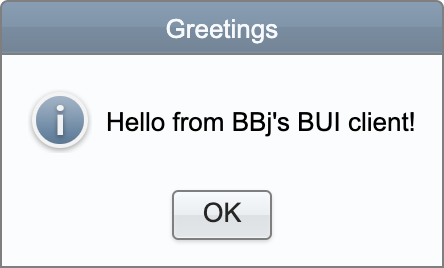
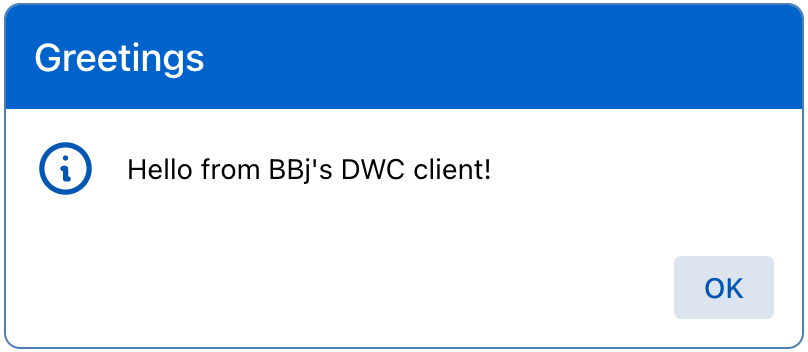
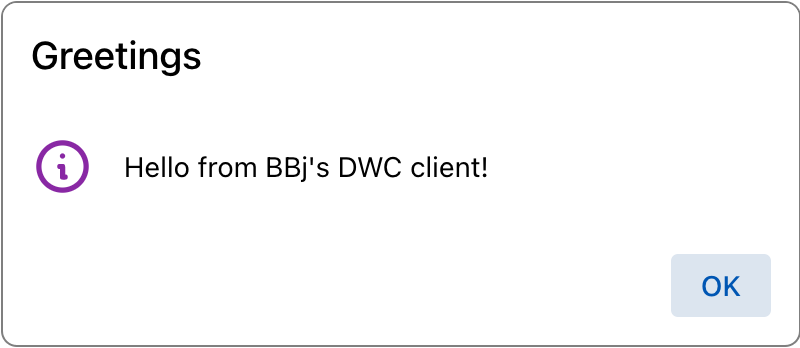
3) After seeing how the program runs in BUI, change the URL in your browser so that the app runs in the Dynamic Web Client. Running the above program in the DWC results in the following message box:
Example 2 - DWC Component Themes
1) The DWC offers seven different component themes: default, primary, success, warning, danger, info, and gray. Modify the sample program to show the message box in the danger theme instead of the primary theme. Note that the message box function's MODE parameter may contain any number of key/value pairs that are comma-separated. That means that you can provide a key/value pair for the message box's theme that colors the title bar and icon, as well as a key/value pair that sets the theme for the [OK] button (button-0). More information about the mode string for the buttons is available in the documentation and at the end of the Program Notes above. After successfully modifying the code and reloading the DWC app in your browser, you should see the following message box in the danger theme with a danger-themed [OK] button: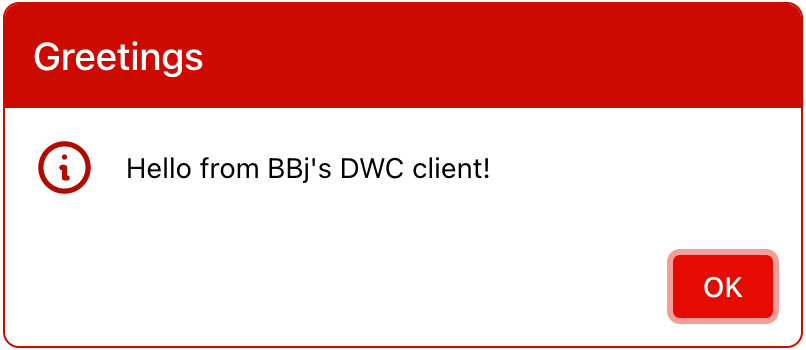
BBj Message Box function
DWC-specific message box documentation
DWC component themes
Going the Extra Mile
The short sample program used in the exercises included a MODE string in the message box function that set the message box's theme to "primary". This mode string is documented as only affecting programs running in the Dynamic Web Client, so removing it from the code shouldn't make any noticeable difference when running in BUI. But it does make a difference in the DWC, as the message box will revert to using the "default" control theme when we remove the mode string from the code. Try experimenting with the code by first removing the mode string, then by adding it back again but specifying the "default" theme instead of the "primary" theme. The result should look similar to the following:

Notes
1) Running a BBj App in the Dynamic Web ClientThere are a few different ways to run a BB app in the DWC, including:
1) Launching the app from Eclipse's [Run BUI Program] toolbar button (
 ), then modifying the app's URL in the browser manually by replacing the BUI context (apps) with the DWC context (webapp).
2) Launching the app from the app's definition page in Enterprise Manager via the [Launch In Browser (DWC)] button.
3) Similar to #1, another option exists to do the same thing automatically by adding code to the top of the BBj app to force it to switch to running in the DWC if it was originally launched in BUI. This can be combined with #1 above, so a single click of the Eclipse tool button will launch the program in BUI and the app will switch automatically to running in the Dynamic Web Client after executing this code at the top of the app:
rem If the app is running in BUI, switch it automatically to run in the DWC client instead
rem ================================================================================
if (info(3, 6) = "5") then
    bui! = BBjAPI().getBuiManager()
    url! = bui!.getUrl().replaceAll("apps", "webapp")
    action! = bui!.urlAction(url!)
    bui!.setEndAction(action!)
    release
endif
Last modified: Thursday, 20 June 2024, 10:46 AM