2D. DWC Themes
Overview
This section covers adding a Light/Dark Mode toggle to a DWC application, introduces the DWC Themer utility, and demonstrates how to apply a CSS theme file created in the DWC Themer to a BBj DWC app.Concepts Covered in This Section
- Adding a Light/Dark Mode Toggle to an App
- Using the DWC Themer to Create CSS Themes
- Applying Saved CSS Themes to DWC Apps
Light and Dark Themes
The previous section covered the DWC's App Themes (light, dark, and dark-pure), and the second example showed how one of the provided BBj applications looks when running with the DWC's "dark" app theme. For some user-facing apps, providing a light/dark mode toggle (such as the toggle on the DWC's documentation page) is a really nice feature. And since changing the DWC's theme can be accomplished very easily in one line of code, the next example walks through that process.
Example 1 - Adding a Light/Dark Mode Toggle
1) Start by loading the DWCTraining/02_CSSStylesAndCustomProperties/CSSCustomProperties.bbj program and adding a BBjButton to the window, as in:rem Add a toggle button for dark/light modeNote that we're making use of the DWC's icon pools, which will be covered more later in the course.
web! = BBjAPI().getWebManager()
declare auto BBjButton myThemeToggle!
currentTheme$ = "light"
lightTheme$ = "<html><dwc-icon name='sun'></dwc-icon> Light"
darkTheme$ = "<html><dwc-icon name='moon'></dwc-icon> Dark"
myThemeToggle! = myWindow!.addButton(lightTheme$)
myThemeToggle!.setCallback(BBjButton.ON_BUTTON_PUSH, "onThemeToggle")
2) Then add the callback code (Note: you have to get the WebManager beforehand as it is needed to set the Theme), as in:
onThemeToggle:3) Run the program and test the button. If all goes well, the button should display a picture of the sun and the word "light" in light mode:
if (currentTheme$ = "light") then
currentTheme$ = "dark"
myThemeToggle!.setText(darkTheme$)
else
currentTheme$ = "light"
myThemeToggle!.setText(lightTheme$)
endif
web!.setTheme(currentTheme$)
return


Now we've given the end-user control over the app's appearance with the click of a button!
The DWC Themer
The DWC Themer is a utility that allows you to change various CSS custom properties that the BASIS Dynamic Web Client (DWC) uses to affect the look and feel of BBj controls in a web application. The app is written in BBj, runs in the new Dynamic Web Client, and is a WYSIWYG theme editor. That last sentence was a bit of a mouthful, so let’s break it down. First, a theme editor acts as a visual assistant that allows users to create or modify a theme that they can subsequently apply to their applications to customize its look and feel. The WYSIWYG portion stands for “What You See Is What You Get”, meaning that you can modify individual theme properties and see how your changes affect the full set of BBj controls in real-time. By default, the DWC Themer starts off with the default DWC theme loaded, meaning that it displays several of the DWC’s CSS custom properties along with their default values. The user may change the values of any number of the CSS custom properties to create their own theme, which they can then export to a theme file on disk. The DWCThemer also offers a custom BBj class that facilitates applying saved themes to DWC applications.
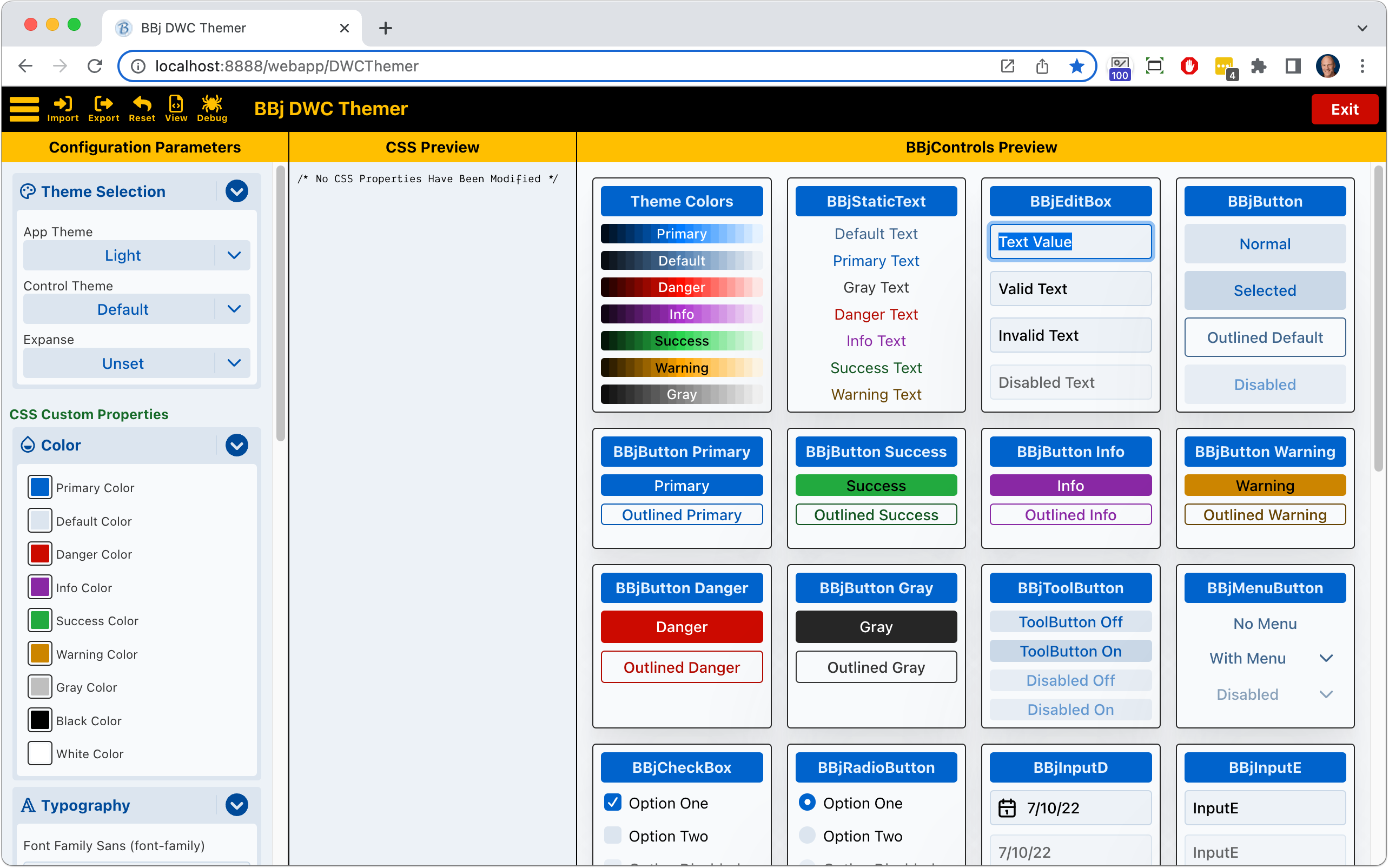
Here's a preview of the DWC Themer before any changes have been made, except the preference to show the CSS Preview section that details the CSS custom properties that have been changed from their default values:
And here's what it looks like after making several changes to various CSS custom properties:
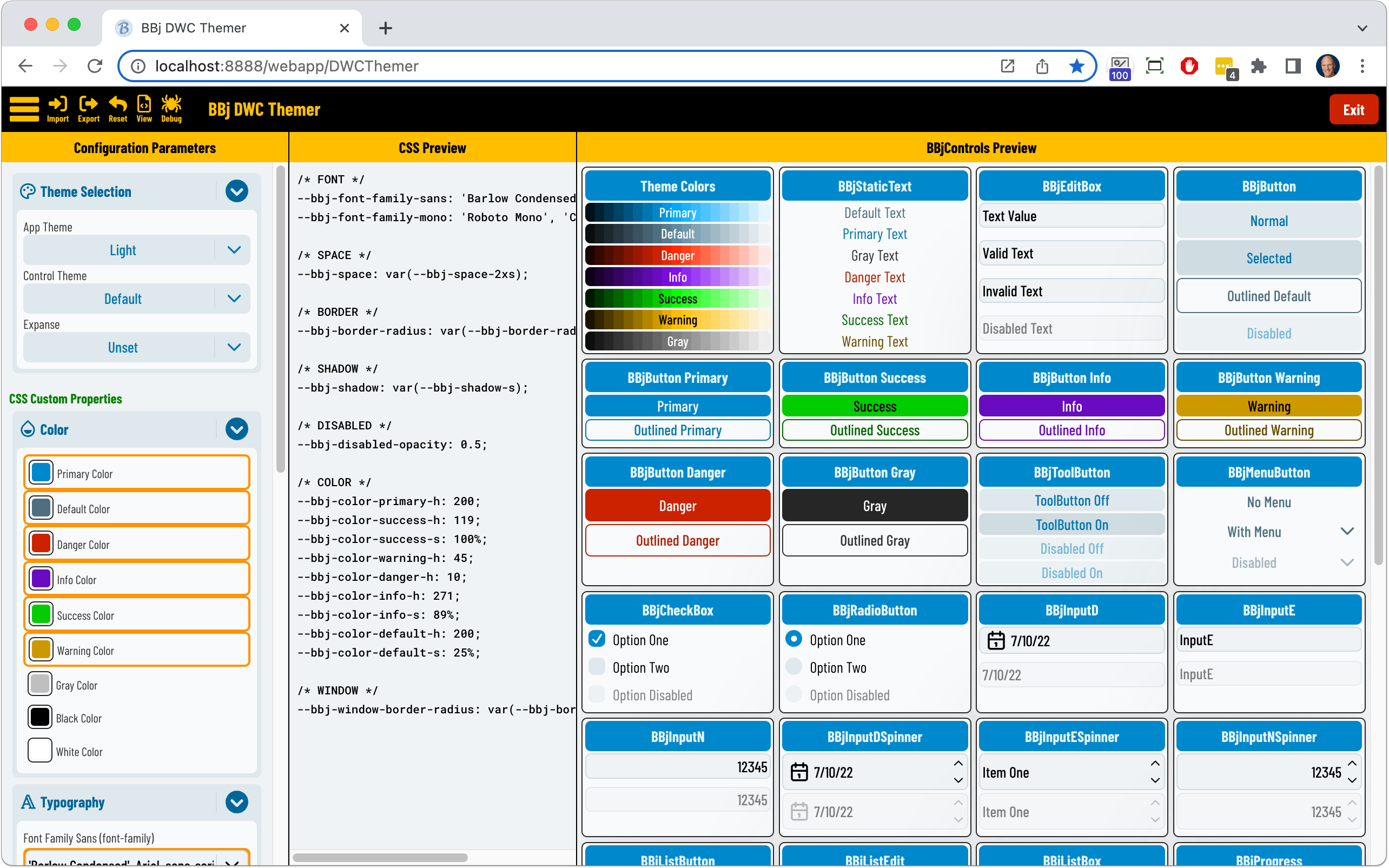
In the screenshot above, the CSS custom properties that have been modified from their original values appear with an orange outline in the left-hand Configuration Parameters section. The CSS Preview section now lists all the CSS custom properties with user-modified values, and the BBjControls Preview right-hand section shows various BBjControls rendered with the modified CSS values.
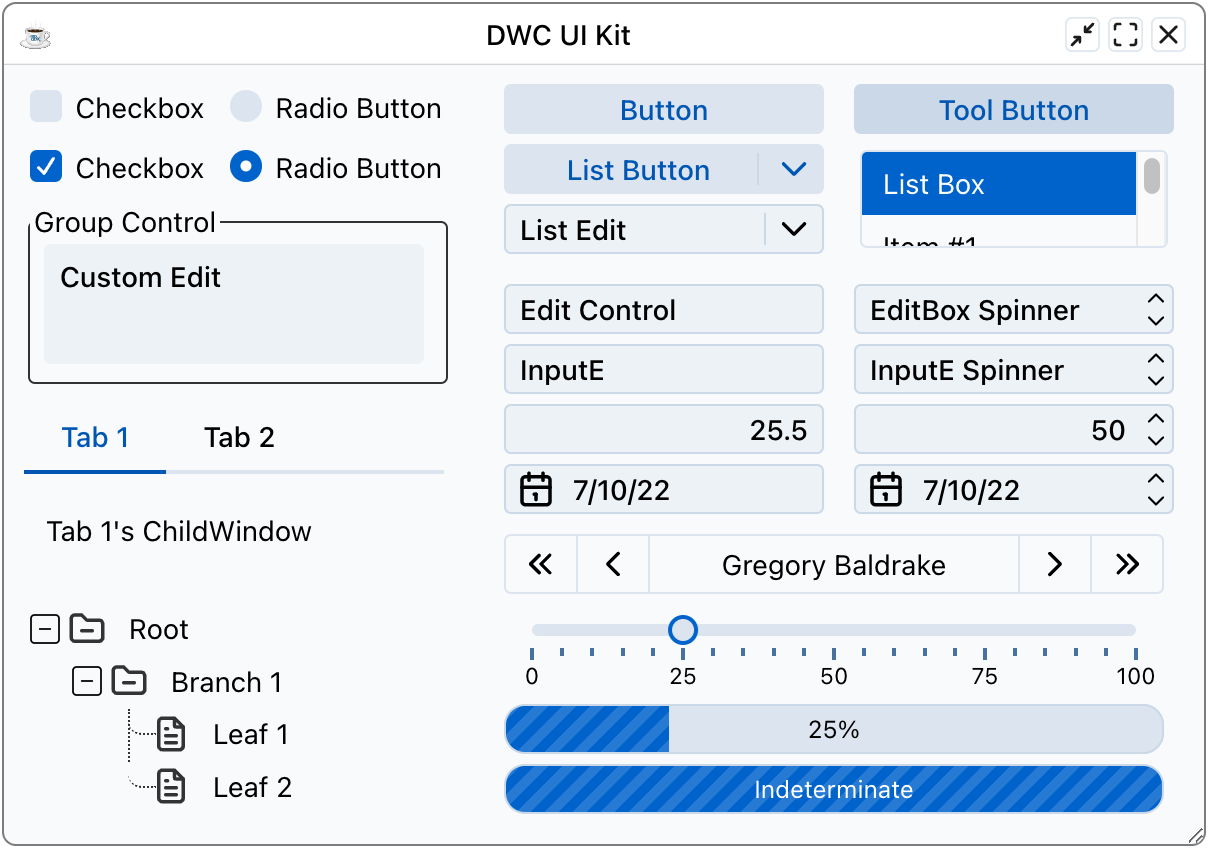
Running the TechCon 2022 UI Kit Demo, which displays many BBj controls in a single window, without any modifications to the CSS results in the following:
After applying the saved CSS theme shown in the DWC Themer above, the same program looks quite a bit different:
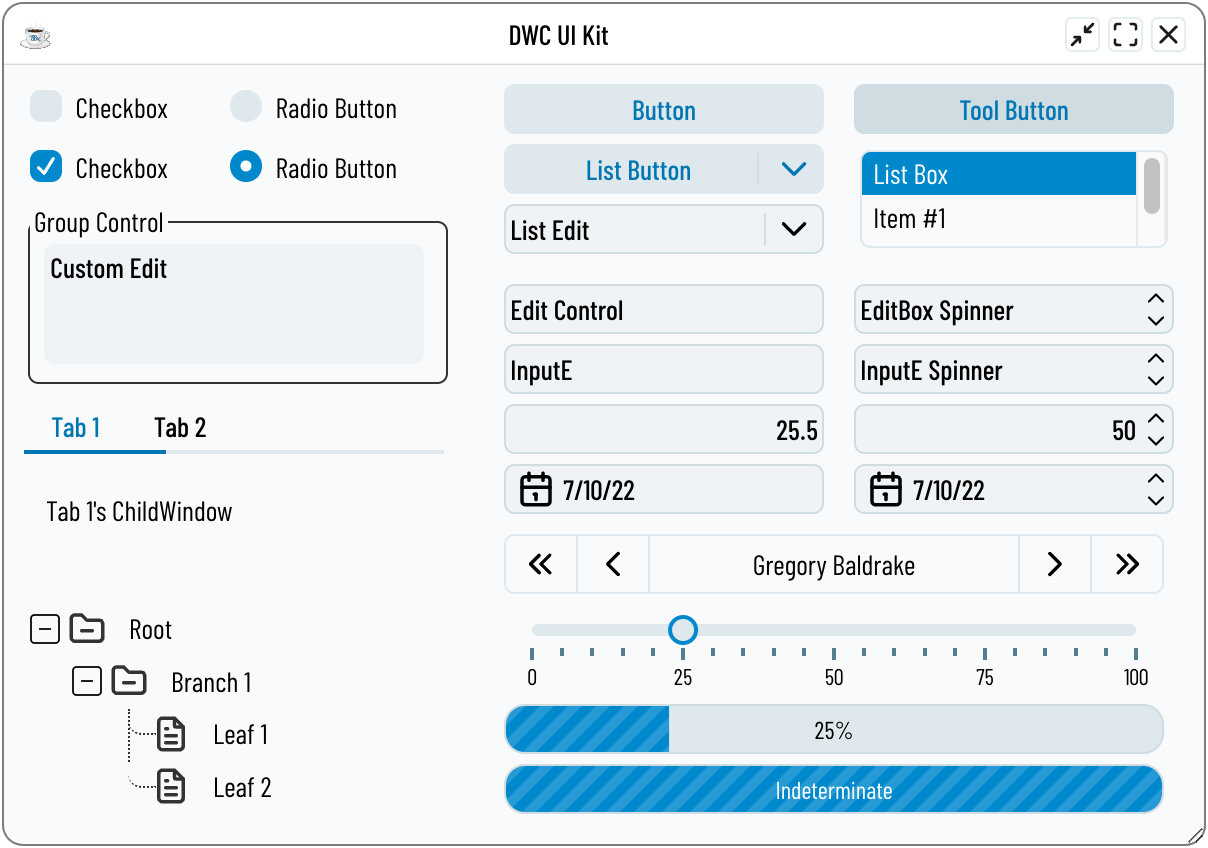
The primary color has definitely changed, as has the font. Additionally, the spacing has been decreased so the BBjListBox in the upper right no longer truncates the second list item.
Example 2 - Creating a Theme in the DWC Themer
1) Start by launching the DWC Themer, then either load one of the sample themes that came with the course materials (DWCTraining/01_GUI2BUI2DWC/DWC_AppThemes/css/MyDwcTheme.css) or create a theme of your own. Notice how the controls in the right-hand preview section change their appearance based on the theme.
2) Apply the theme by running the DWCTraining/01_GUI2BUI2DWC/DWC_AppThemes/DWCThemer.bbj program. If you've created and exported (saved to your browser's download directory) a custom theme from step one above, change the following line of code to load your custom theme instead of the one that came with the course materials:
theme! = new String(Files.readAllBytes(Paths.get(fs!.resolvePath("./css/MyDwcTheme.css"))))
After this you just create your WebManager and then inject the Style:
    use java.nio.file.Paths
    use java.nio.file.Files
    web! = BBjAPI().getWebManager()
    web!.injectStyle(theme!,1)